
Search the Community
Showing results for tags 'EV3'.
-
 I had two projects: to make a very strong/good climber vehicle and a fast one. This is the climbing one. I used four EV3 L motors and ten 32019 tires. Motors are an overkill, two would have been enough. The main problem was traction and weight distribution. As a climbing surface I used a "Kapa fix" board. That is a very challenging (slick) surface, but great for comparison since it is easily obtainable and same for everyone. The "car" does nothing special, it is just fun to watch it climb very steep inclines. Current "record" is 55°.
 -
 Hello, I need advice for individual projects.I have done some work on my channel. Can you review? Waiting for your comments. Good work. https://www.youtube....m3IuBvcPALsXwGQ
 -
 Hello. This is about trains but I think it's more appropriate to post it here under Mindstorms theme. My LUG (PLUG, from Portugal) train fellows have been developing their own modular standard (MFL) for our exihibitions. Since it defines a 6-brick height above the table surface there is plenty of space under the tracks to hide motors, gears and gadgets. That idea attracted me so I decided to try MFL. First I rebuilt a motorized track switch I was already using with WeDO and then decided to also try a turntable and then... well, you know :) At this stage, this is my setup: - a Mindstorms EV3 running ev3dev (Debian linux) to control everything - a wi-fi USB dongle (not essential but allows me to use my laptop as a console, much more easier this way) - a bluetooth 4.0 USB dongle to control the SBrick-based trains - an EV3 ultrasonic sensor to sense when the train reaches the middle of the turntable - an EV3 touch sensor to sense each time the turntable completes a 180º turn - two Power Functions lights (with a NXT-9V adapter) to signal the movement of the turntable and the control of the train - one USB RFID reader to sense/identify the trains - one LEGO WeDO to control the two track switches (one Power Functions M motor under each) Each train has: - a SBrick (will try IR later) - a RFID tag The train is brought to the RFID sensor where the EV3 recognizes the train (green lights start blinking) and tries to establish a bluetooth BLE connection to the SBrick (green lights keep ON). Then the EV3 takes control and sends the trains to the turntable, using the ultrasonic sensor to prevent collision against the end of the turntable. When the turntable starts turning, the red lights blink (and a claxon sound plays, but its not used in the video). There is also a touch sensor under the end of the track that senses when the turntable completes each 180º turn. Then the EV3 sends the train back to the starting point, using the RFID sensor to detect the train. The bluetooth connection is dropped and now the train is available for manual control. The EV3 is ready for another train. For a near future I plan to give good use to the track switches (only one is motorized but the second will follow soon). I also want to try a method I saw here at Eurobricks to separate the train engine from the wagons. This way the train engine could drop the wagons, revert direction at the turntable, move along the left path and pick the wagons again. To be honest, the turntable still needs some adjustments - sucess rate is ~1/3, sometimes the train slips when moving in, sometimes when moving out.
 -
 Ralph Hemple made a video showing
 -
Just learned about this tiny Intel Compute Stick Wondering if it might be practical for use with LEGO Wedo, Minstorms NXT and EV3 BTW how are LEGO Train configured. Does it need a computer?
-
 I am a big fan of controlling those little Power Functions motors in every way possible ( and I like making apps :) ), and with that in mind I created this lovely iPad remote that connects to the EV3 and with it’s help and the two well known IR sensors ( PFMate and IRLink ) controls Power Functions motors ( and EV3 or NXT motors ). This is a little demo of it in action: And explained in words, starting from the left: NXT motor connected to Port A EV3 motor connected to Port B Small PF motor connected to channel 3 and to the blue connector on the IR Receiver on the left ( on top of the battery box ). The EV3 sends the IR signal through the IRLink sensor ( connected to port 3 on the EV3 ). The power in this setup comes from port D on the EV3, going through a x1676 Conversion Cable + extension wire ( 8886 or 8871 ) to the battery box, and then to the IR Receiver. Of course the power to the motor can also come straight from the battery box ( with batteries : ) and no other conversion , extension wires...). It really isn’t a good idea to power so many motors from one EV3 port, I was short on battery boxes so… XL motor connected to channel 1 and red connector of the IR Receiver on the right ( top of the battery box ). IR signal received from IRLink ( connected to port 3 on EV3 ) XL motor connected to channel 4 and red connector of the right IR Receiver. IR signal received from PFMate ( connected to port 2 on EV3 ) the commands can be recorded and played back ( even in reverse ) all motors can be powered at the same time ( use different EV3 ports!, or battery boxes with batteries directly! ) - it can handle 16 motors ( 2 screens ) of course control speed, direction, label buttons, motors, save remote... and even a servo motor option for EV3/NXT motors. And here is a short video with it put to good use with a 42006, 3 motors and IRLink :) : The app can be found here: https://itunes.apple...d921365042?mt=8 There is also a version for the NXT ( it is actually my initial app PFremote ), but that one requires a server app ( MAC, PC or Android ) to act as a bridge between iPad and NXT ( not complicated, but not as convenient as a direct connection to the EV3 ). The EV3 WiFi came in very handy to make a direct connection to the brick ( YES ! :) ).
 -
 Teaser: Introduction The article describes the experience of using the Lego Mindstorms EV3 set for creating a robot prototype with software and manual control via Robot Control Meta Language (RCML). Next, we will discuss the following key points: Assembly of the robot prototype from the Lego Mindstorms EV3 set. Quick RCML installation and configuration for Windows. Robot software control based on EV3 controller. Manual control of the robot peripherals using a keyboard and a gamepad. Jumping a little ahead, I will add that for implementing control over a Lego robot via a keyboard, one will have to create a program containing only 3 lines of code. More information about it is available under the cut. Step 1 First, the Lego Mindstorms EV3 set was used for creating a prototype robot to be used for programming and manual piloting. The robot's design is similar to that of a truck chassis. Two motors installed on the frame have one common rotation axis connected to the rear wheels via a gearbox. The gearbox converts the torque by increasing the angular speed of the rear axle. The steering system is assembled on the base of a bevel gear speed reducer. Step 2 The next step is RCML preparation for working with the Lego Mindstorms EV3 set. Download the archives with executable files and library files rcml_build_1.0.6.zip and rcml_modules_build_1.0.6.zip. The following describes the quick start procedure for ensuring interaction between RCML and the Lego robot controlled by an EV3 controller. Content directory after extracting the archives Next, one has to create configuration file config.ini to be placed in the same directory. To implement control over the EV3 controller via a keyboard and a gamepad, connect modules lego_ev3, keyboard and gamepad. Listing of configuration file config.ini for RCML [robot_modules] module = lego_ev3 [control_modules] module = keyboard module = gamepad Next, the EV3 controller should be paired to the adapter. The instruction for pairing an EV3 controller to a Bluetooth adapter: The reference guide contains an example of pairing a Lego Ev3 controller to a PC running under Windows 7 operating system. Next, go to the Ev3 controller settings and select menu item "Bluetooth". You should make sure that you have set the configuration settings. “Visibility” and” Bluetooth” should be ticked. Go to "Control Panel", select "Devices and Printers", and "Bluetooth Devices". Click on the "Add device" button. A window with available Bluetooth devices will open. Select "EV3" device and click "Next". Dialog box "Connect?" will be displayed on the EV3's screen. Check as appropriate and confirm by pressing the center key. Next, the "PASSKEY" dialog will be displayed, enter digits "1234", and confirm the key phrase for pairing the devices by pressing the center key at the position with the tick image. In the pairing wizard of the device, a form for devices pairing key will appear. Enter "1234" and press "Next". A window with confirmation of successful device connection will appear. Press the "Close" key. At the PC, return to "Control Panel", select "Devices and Printers", and "Bluetooth Devices". The paired device will be displayed in the list of available devices. By double clicking, go to “EV3” connection properties. Next, go to the "Hardware" tab. By double clicking, go to the connection properties of the "Standard Serial over Bluetooth link". The COM port index specified in the properties should be used in the config.ini configuration file of the lego_ev3 module. The example shows Bluetooth connection properties of a Lego EV3 controller with the use of a standard serial port COM14. Further module configuration is limited to specifying the address of the COM port used for communication with the Lego robot in the configuration file of the lego_ev3 module. Listing of configuration file config.ini for the lego_ev3 module [connections] connection = COM14 [options] dynamic_connection = 0 Now configure the keyboard module. The module is located in the control_modules directory, then keyboard. Create configuration file config.ini next to the keyboard_module.dll file. Before creating a configuration file, specify the actions to be performed by pressing keys. The keyboard module allows using keys with a certain numeric code. The table of virtual key codes is available here. As an example, I will use the following key press events: The up/down buttons are used to rotate the rear wheels motor forward/backward. The left/right arrows turn the wheels left/right The configuration file of the keyboard module describes which axes are available for the programmer to implement interaction with the robot in the manual mode. Thus, in the example we've got two control groups - these are keyboard axes. To add a new axis, stick to the following rules of axes description. Rules for describing axes for the keyboard module. 1. In case of adding a new axis, add axis name property to section [mapped_axis] and set it equal to the value of the keyboard key in HEX format; there may be several keyboard button values for one axis. In general, an entry in the [mapped_axis] section will look as follows: axis_name = keyboard_button_value_in_HEX_format 2. You should set the maximum and the minimum values that the axis may take. To do so, add to the config.ini configuration file a section named as the name of the axis, and set the upper_value and lower_value properties for passing the values of the axis' maximum and minimum. In general, the section looks as follows: [axis_name] upper_value = the_max_axis_value lower_value = the_min_axis_value 3. Next, you should determine what value the axis will have after a previously defined button on the keyboard is pressed. The values are defined by creating a section with the name consisting of the axis name and the value of keyboard button in Hex format, separated by underscores. To set the default (not pressed) and pressed state values, unpressed_value and pressed_value are used, where the values are passed. In general, the section in this case will look as follows: [axis_name_keyboard_button_value_in_HEX_format] pressed_value = axis_value_with_pressed_button unpressed_value = axis_value_with_released_button To implement the control over the robot prototype, a configuration file of the keyboard module has been created, which includes the "go" and "rotate" axes. The "go" axis is used to indicate the direction of robot movement. When the “up arrow” button is pressed, the axis is set to 100, and when the “down arrow” button is pressed, the axis is set to -50. The rotate axis is used for setting the front wheels turn angle. When the "left arrow" button is pressed, the axis is set to -5, and when the "right arrow" button is pressed, the axis is set to 5. Listing of configuration file config.ini for the keyboard module. [mapped_axis] go = 0x26 go = 0x28 rotate = 0x25 rotate = 0x27 [go] upper_value = -100 lower_value = 100 [rotate] upper_value = -100 lower_value = 100 [go_0x26] pressed_value = 100 unpressed_value = 0 [go_0x28] pressed_value = -50 unpressed_value = 0 [rotate_0x25] pressed_value = -5 unpressed_value = 0 [rotate_0x27] pressed_value = 5 unpressed_value = 0 Next, for control implementation using a gamepad, configure the gamepad. Configuring the module includes creating configuration file config.ini next to gamepad_module.dll in the control_modules directory, followed by gamepad. Listing of configuration file config.ini for the gamepad module. [axis] Exit = 9 B1 = 1 B2 = 2 B3 = 3 B4 = 4 L1 = 7 L2 = 5 R1 = 8 R2 = 6 start = 10 T1 = 11 T2 = 12 RTUD = 13 RTLR = 16 LTUD = 15 LTLR = 14 arrowsUD = 17 arrowsLR = 18 [b1] upper_value = 1 lower_value = 0 [b2] upper_value = 1 lower_value = 0 [b3] upper_value = 1 lower_value = 0 [b4] upper_value = 1 lower_value = 0 [L1] upper_value = 1 lower_value = 0 [L2] upper_value = 1 lower_value = 0 [R1] upper_value = 1 lower_value = 0 [R2] upper_value = 1 lower_value = 0 [start] upper_value = 1 lower_value = 0 [T1] upper_value = 1 lower_value = 0 [T2] upper_value = 1 lower_value = 0 [RTUD] upper_value = 0 lower_value = 65535 [RTLR] upper_value = 0 lower_value = 65535 [LTUD] upper_value = 0 lower_value = 65535 [LTLR] upper_value = 0 lower_value = 65535 [arrowsUD] upper_value = 1 lower_value = -1 [arrowsLR] upper_value = 1 lower_value = -1 Step 3 The next step is writing a program in the RCML language. At the root of the created directory, create the program file. The name and extension of the program file may be anything, however, Cyrillic characters are to be avoided. In the example, the filename is hello.rcml. For the lego_ev3 module, the robot redundancy program code looks like: @tr = robot_lego_ev3; The lego_ev3 module connection page contains description of the majority of the features supported by the controller. As a test example, a program for automatic robot drifting has been created. The algorithm of the program is as follows: function main() { @tr = robot_lego_ev3; //Reservation robot @tr->setTrackVehicle("B","C",0,0); //Installing the engine synchronization @tr->motorMoveTo("D",100,0,0); system.sleep(500); @tr->trackVehicleForward(-100); system.sleep(1000); @tr->motorMoveTo("D",50,-50,0); system.sleep(4000); @tr->motorMoveTo("D",50,50,0); system.sleep(4000); @tr->trackVehicleOff(); system.sleep(1000); } After reserving the first available robot, two motors are paired for further operation as one. After that, the robot starts drifting. Program description of robot actions makes it possible to precisely set front wheels turn angles and rear wheels rotation speed. Using this method allows achieving the results that are difficult to replicate by manual piloting from a keyboard or a gamepad. The program is compiled in the windows command line. First, navigate to the new directory with the rcml_compiler.exe and rcml_intepreter.exe executables. Then enter the following commands. The command for compiling the hello.rcml file: rcml_compiler.exe hello.rcml hello.rcml.pc The result of compilation is a new hello.rcml.pc file in the created directory. Now make sure the EV3 controller is enabled, and paired to the Bluetooth adapter. A gamepad should be connected to the PC. After that, run the program file execution command: rcml_intepreter.exe hello.rcml A video showing the robot motion program is located below this article. Step 4 The next step is controlling the robot manually, using a keyboard. The following describes the process of software pairing of robot motors to the keyboard. Keyboard can be used for controlling any motor of the robot. Within the framework of the example, control over the following mechanisms has been implemented: Front wheels turn angle, Direction of rear wheels rotation. The algorithm of the program is as follows: function main() { @tr = robot_lego_ev3; @tr->setTrackVehicle("B","C",0,0); system.hand_control(@tr,"keyboard", "straight","go", "speedMotorD","rotate"); } Then the program should be compiled and executed. The result of manual controlling a Lego robot via a keyboard is shown in the video at the bottom of the page. Step 5 In addition to the keypad module, the gamepad module is available, which makes it possible to manipulate the robot using the gamepad. For implementing control over the robot via a gamepad, one should describe at the program level what axes of the robot will be set to the values of the gamepad axes. The algorithm of the program is as follows: function main() { @tr = robot_lego_ev3; @tr->setTrackVehicle("B","C",0,0); system.hand_control(@tr,"gamepad", "straight"," RTUD", "speedMotorD"," RTLR"); } Then recompile the program and execute it. Below is the result of manual control over a Lego robot via a gamepad, and all previously connected methods: Control Lego Ev3 by using RCML The article briefly shows only certain RCML features. A more detailed description is available in the reference guide.
 -
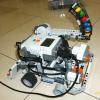 Finally! The motorcycle built using EV3! Using 2 motors on the rear wheel for maximum torque and the medium motor for optimum steering, this is the most powerful motorcycle you will ev3r see!By the way anyone spotted the easter egg... BTW...anybody can tell me how to make the video visible to everybody?
 -
 Hi all, since I recieved Mindstorms EV3 set 31313 few days ago I've decided to start my first project. I call it CLEV3R CAR and as you can guess it's about car. I've just finished building it and I'm about to start programming it. So let's talk about model first. It looks like Mini Cooper, chassis is inspired by RAC3 TRUCK and I've finished it in just two days. It features two large motors for driving, medium motor for steering, IR sensor instead of radiator and rear bumper with touch sensor. I wanted to build it as small as possible but it became pretty big. I've paid attention to many details so you can easily remove EV3 brick (for example to change batteries) and there is enough space under it so you can use it with original rechargable battery as well. It's also pretty sturdy, I plan to program several modes for it: Automatic - independent driving with avoiding obstacles RC - remotely controlled from IR beacon with driving assistance (for example if you drive it against wall it will stop before it) Search for beacon - independent driving to beacon By the way does anyone have experience with programming searching for beacon? I can imagine how to do it for tank (or other tracked vehicle that can turn on the spot) but car with classic steering is something different...
 -
 Hello all, Firstly, I would like to apologise about the text wall - I got a bit carried away I am writing here on behalf of a FLL (First Lego League-there website address is http://www.firstlegoleague.org/) team I am part of called Fuzzy Logic. For those of you who do not know what FLL is, it is a Lego Robotics competition for school children. There are four parts to winning the competition and they are as follow 1: Robot performance The robot you build has to be a Lego Mindstorms one (it doesn't matter what generation) and it will perform on a mat with various different challenges on. The more challenges you complete, the more points you get. 2: Robot Design This category is about how well built the robot is and what functions it has as well as how innovative it is 3: Core values How well you wok together as a team and with other teams 4: The project The project will be set around a pre decided topic which is decided by First, the people who run the FLL. This year the theme was trash and I will be talking about that later All of these aspects will be individually judged and you will be given an overall score. If you are the highest in your region (for Fuzzy Logic this is the south West) you will go through to the nationals that are to be held in Loughborough this year. We won our regional area along with a team called Tech HEds (I don't know if they post here but if they do, Hello!). So that means that on 21st of February we will be heading up to Loughborough to compete head-to-head with the 39 other best teams in the UK. Whoever wins that will go through to the internationals that are held in America as a representative for the UK. So what is the meaning of the post, I hear you ask and this is it: We would like some help with our project. Our project is called the Net Bag. It is a small, orange bag designed to replace the plastic grocery bags you get in shops. I'll explain it briefly here but there will (should!) be a PowerPoint explaining it more thoroughly attached to this post. EDIT: It turns out I can't upload a PowerPoit but if you do want to see it, PM me you email address and I will email it to you. The Net Bag uses less plastic than the normal one because it is a net and will be made from recycled plastic from the oceans. It is possible to make these, we have tried by shredding up, extruding and then weaving recycled plastic offcuts from our DT department at school. We came up with the idea because we looked at some plastic bag figures and realised how much we are drowning in plastic; we use 5 trillion plastic bags yearly for instance! We also looked at the 5p plastic bag charge and saw how that had created an 80% decrease in plastic bag usage at Tesco! However, the plastic vegetable bags are still free so people are stealing them (we have video evidence to prove this. The Net bag is a good alternative because safe for young children and very strong and long lasting along with other things. That basically sums up the Net bag but you should read the PowerPoint for more information. If you can't open it just tell me. The bit we would like your help with is an online SurveyMonkey we would like you to fill in to gather customer research about the Net Bag. The address is https://www.surveymo...co.uk/r/netbags and it would be really helpful if you could fill it in and tell others about it so we can get more balanced results and good publicity. The survey is self explanatory but if you have any problems please contact me via PM or the comment. Thank you for helping us and for reading that text wall but hopefully it will be worth it. If you have any ideas or suggestions please comment and leave any other feedback. Thanks again, Jim and the rest of Fuzzy Logic
 -
Hi, I'm new to these forums, and new to Lego mindstorms. I'm finding the PC software to be *really* slow. It takes a second or two to respond to mouseclicks, and dragging bricks around on screen is a pain because it lags so much. I have a fairly powerful laptop with an intel core i7, 8GB, 64bit Windows 10, Nvdia Geforce graphics. Everything else flies on this PC Is the software just really slow, or is there some configuration I can do?
-
I'll call LEGO customer service in the morning (actually later today, yes I am up late ). Hoping someone here has a quick fix. I have a new EV3 brick with rechargeable battery. Recharged the battery while attached to the brick, the brick was initially on, then auto-powered off about half way through. Now, the brick will not turn on - the center button does not move nor can it be depressed - no 'click' when pressed, left/right up/down back buttons all 'click' as normal. Any thoughts on how to reset or what's up. I get the same result regardless if rechargeable or AA alkaline batteries are used.
-
Hi all! I don't know if WeDO fits here at "Technic, Mindstorms & Model Team" but didn't find a better forum theme. The ev3dev people are preparing a WeDO driver for Linux. It will allow any Linux system [EV3 ev3dev included] to use WeDO. Not just ONE WeDO USB hub but as many as you want/have. I got excited and got two WeDO USB Hubs and a tilt sensor. And while waiting done my own tests. There is already a python library for WeDO: wedo. But I could not make it work so I used a variation: WeDoMore. It works fine with my Ubuntu laptop and with Mindstorms EV3 running ev3dev. I believe it will also work seamless with a Raspberry Pi, will try it later. Some more details at my blog. I've also found Philo photos of the WeDo internals and used it to reverse-engineering the tilt sensor. With just 4 resistors and a Power Functions connector we can build a 4-switch control and read it as a tilt sensor (one switch for each tilt state). More on this later.
-
Introducing my latest robot, Blu3s Brick. Blu3s Brick is a Robot that plays along with midi music. It does not make the sounds, but its movements are in sync with the Midi music that is played by a synthesizer. It is able to play and sing along with any midi file. For those who like the technique behind it. Here is a very short explanation. Midi files do not contain sound like MP3's. instead they contain instructions for electronic instruments like synthesizers. These instructions have the form of "play note x". On my computer I have a sequencer running that sequences these instructions and sends them both to a synthesizer and this robot. The robot is programmed to react in a appropriate way to the instructions using lejos. The heart of the robot is an EV3 brick. Enjoy!
-
I move the discussion from Mindstorms General Discussion thread to get a wider attention I have recently bought two EV3 Education sets (45544) on allegro.pl, Polish analogue of eBay - from unofficial seller. It turned out that the sets did not contain the rechargeable batteries - instead in each box there was a notice from TLG saying that they have found an error in circuit and removed the battery from all of the sets. And that they will provide it later... I have called Lego support and the Support Lady said that they got some similar complaints already and that they are trying to solve this situation - I was asked to call in 2 weeks time. So I did - and I got an information that those sets (with notice instead of battery) were not supposed to appear on Polish or even on European market - and that they will not provide batteries to those sets. Now I ask you my dear Eurobrickers - what do you think about this situation? It is clear to me that TLGs distribution chain is malfunctioning - and I feel a little bit cheated - as I am the one (among many) that suffers.
-
Hi, I am new to this forum and hope I can live up to your standards. I wanted to share my holonomic robot Agilis. It is build for the EV3 and uses Rotacaster holonomic wheels. The robot is fast and agile, hence its name. The trianguar frame is sturdy and has three sensors docks (not populated in the picture). I do not have a video of this robot, but I do have from an older version that uses the NXT for control. It highlights the kind of complex movements this robot can make.You can also download the building instructions I made, in PDF or in LDraw. I tried to describe the technique of the movements on my blog in several posts regarding Agilis. They might be a bit technical though. Aswin
-
Hi All, I want to share some information regarding the LEGO Mindstorms EV3 Software here. The software is available as a 120.-€ education version and as a free "home" version. When I bought the education version, I faced some issues and made some experiences which might be worth to be shared as I couldn't find the information in the www, yet: The 2 software versions are based on the same core software. The education version is enhanced with "data logging" functionality and more than 50 "training" sessions for the programming elements, sensors, etc.. One who is interested in learning to program and a starter (like my 9 yrs. old son) has a real benefit with the education version and I can say that the additional content is worth to spend some money for it. The home version is provided as download in all available languages while the education version is being sold in "market specific" language bundles. I couldn't find any official information about that, but when I bought my software in the Netherlands I got a BENELUX version key which allows me to download the software only in the languages "english", "dutch" and "french". This is somehow strange as "german" is an official language in parts of the BENELUX countries ... Unfortunately, one does not see this "limitation" as the EV3 education software has the same LEGO part number (2000045) in all countries and the available languages can only be seen after the activation / registration of the software. The LEGO EV3 education software is shipped as an activation key which allow to download language specific installation files from the lego education website. After the activation, the LEGO EV3 education software is registered to the user account and cannot be removed any more, which implies that it cannot be resold. Note: Reselling is also excluded in the license agreement. An interesting discussion if this is compatible with the European copyright laws as they generally allow reselling of "used" software. The bricks firmware is also available in a "home" and an "education" version. The education version is enhanced with a "online data logging functionality" which allows to remotely monitor (via Bluetooth/USB/WLAN) the sensor values on a computer. The source code of the firmware home version has been released by LEGO and is available via https://github.com/m...ards/ev3sources. So, that's it for now. If someone has specific questions regarding the software versions, I will be happy to provide an answer, if possible. Cheers, BrickDaddy
-
 Here is something I built for the MCP Program, using exclusively parts from set 31313: This is Santa Claus' sleigh, pulled by his faithful reindeer Rudolph! Rudolph pulls the sleigh by using the same leg mechanism I came up with for : a simplified version of the Klann linkage. Besides the large motor for walking, there's another one for (very roughly) adjust the angle between Rudolph and the sleigh to allow for curves, and a medium one for making Santa wave his arm.Of course, Rudolph has to have a red nose! The colour sensor, set for reflection mode, gives the nice redness. Like with , I made a point of using the infrared sensor "upside down" for Santa's eyes, to avoid the "aggressive" look given by the lines printed on the sensor. I tried to have the EV3 prominently displayed, with its side ports for USB and SD unobstructed, and reserved space for the rechargeable battery.I really like how the robot turned out to look: it was fun trying to make the most of the 31313's relatively limited assortment of parts (for example, some dampers for Rudolph's hooves would be most welcome). On the other hand, I really wasn't able to make it work well: with an EV3 loaded with batteries, a large motor, a medium motor, and assorted parts, the sleigh got really heavy for Rudolph to pull, even with wheels underneath. Also, the steering is just too abrupt for direct remote control, and I couldn't find a way to gear it down while using the available parts and still look cool. Here is the video of it in motion. And here are some more pictures. If you want to see any detail or other angles, just ask. I hope you like it!
 -
Hi Folks, My son got the Minstorm EV3 for Christmas. So far the basic model that comes with the Mindstorm Box has been built. I think it is called Track3R. The demo program has been executed sucessfully. The thing can move forwrad, backward, rotate, and turn its propeller in both directions. However, we are having some issues with the infrared sensor. The light turns green on the remote, but the IR sensor doesn't receive the signal. I have tried all channels 1, 2, 3, 4. I also did indeed changed the EV3 menu to "IR Control" before activating the IR remote. On the EV3, the screen shows "CH1+2". Then I see an arrow going from CH2 to A then from CH2 to D and then from CH1 to B and C. Am I missing something? Max.
-
 Browsing through some pictures mentioned in [MOC] Dodge Challenger '70 R/T (by Dustyen055), I continued to browse and found this nice creation. More photos can be found on Flickr Chronicler35
 -
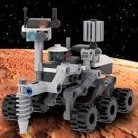 Hello! Recently i discovered that both the Mindstorms EV3 beacon and the PF IR Remote are interchangeable. Here are some explanations: I was very happy to know that the EV3 Retail Kit comes with a Infrared remote(beacon), which can be used as a remote control for your robots. That's pretty handy if you want to build robots that interact with humans. By accident, i found out that the IR Beacon and PF remote are interchangeable for use with both the MS EV3 and PF systems! I tried it, and they both work with the Mindstorms EV3 IR Sensor and the Power Functions IR Receiver! Seems that the IR signals they produce are the same ( escept for the beacon mode button on the Mindstorms remote). The conclusion is that they can both be used to control EV3 and Power Functions models. Some time ago i read that the RCX can be used to SEND IR signals to the PF IR Receiver. That probably takes more knowledge than i currently have. This lead me to the following question: Can the Mindstorms EV3 Sensor can do the same? Is it able to send IR messages to other devices? For example, is it possible for an EV3 robot, using the Infrared Sensor, to send signals to a Power Functions IR Receiver? In this way you can expand the motor limit (4) with an external battery pack and an IR Receiver. I hope someone has information on that matter! (Solved! the EV3 IR sensor cannot be used to send IR signals to PF receivers and such ...) Thank you in advance!
 -
Hi all!!! When I turn on the EV3 Brick, it takes too much time to start up!!! And the same in order to turn off it...! Is it normal? How many seconds does your EV3 Brick take to turn on and turn off? Thank you! Regards, alfredone78
-
 At the moment, this is just an idea - since I have two cars currently half-build, I will finish them before doing this. Expect this sometime in October (knowing me, near the end of it ). This will be about 1:10 scale with 68.8x36ZR tyres. As with all my cars, this won't be a strict scale model - I just want the car to be recognisable, functional and fast. These are my plans: Power will come from my entire EV3 arsenal - 3 EV3 Large motors and one EV3 Medium motor. These will be connected in a very strange way. The Large motor and Medium motor (geared down 5:3) are combined with an adder. This output will go into a second differential with one Large motor on each side. Each side will then be geared up (hopefully 1:9) before going to the wheels. I haven't tested this setup - I really hope the diffs are strong enough . I might need to gear up the motors 1:3 before the diff and 1:3 after the diff, but I'd rather avoid this if I can since it would mean more sets of gears. When turning, the Large/Medium combo (representing the ICE) will have to slow down a little bit, as will the Large motor on the inside of the turn. Steering will not be motorised - my plan is for the front wheels to be able to steer freely (maybe with a rubber band to provide a little self-centering) but have a high castor angle. When the motors on each side of the diff turn at different speeds, the front wheels will steer automatically. Essentially the fastest castorbot ever! Suspension is still undecided. Depending on the layout of the drivetrain and my chosen width (the math says 26 studs - I have a choice of 25 or 27), the rear suspension may either be independent or an independent trailing-arm type. Whatever I go for, I would like something that replicates the triplex suspension in the real car. Front will be regular independent, with the wheels free to pivot. Making the ride height adjustable would be a bonus. I'm also hoping to make proper Koenigsegg doors and have some space for a cabin.
 -
MINDSTORMS EV3 OMNIDIRECTIONAL ROBOT INTRODUCTION The reason you are stuck with me as Moderator/Admin is actually caused by Mindstorms EV3. I proposed an Index for Mindstorms and Bonaparte figured I could make one myself. Resulting in me making one, and one thing lead to another. In 2013 TLG released a brand new edition of LEGO Mindstorms. Owning two NXT sets, which I had hardly used to build something cool, I was determined to change that when I bought the EV3 sets. I first bought the 45544 - EV3 Education Core Set set, and shortly after that I added the 31313 - Mindstorms EV3 (Retail) set to my collection. After some initial experiments both unit had been turned on approximately the same number of times as the NXT. This being a terrible waste of potential, I recently decided to start building the robot I have been planning in my mind for a long time. My goal is to build a fairly big humanoid(-ish) robot. Does that sound familiar? Of course it does, since my good mate Simon Burfield (Burf2000) has built a super cool humanoid robot recently. We also know him of the Wheelchair and Segway. And yes, he is a big inspiration to me. What I am aiming at is a Omnidirectional Robot with one or two arms and a Wall-e like head. The height of the robot will be approximately the size of a child, let's say around 120cm. Omnidirectional means allowing movement in all directions (more on that in the next chapter). Since I have no idea where this will end, I have created a WIP topic, in review style. I will add chapters along the way. When I add a new chapter I will post that new chapter and edit the original post. Feel free to comment, hint, tip, suggest, mock and ridicule Before we continue I'd like to give my man Burf and the guys at Rotacaster a big thank you! OMNIDIRECTIONAL WHEELS Here's the wikipedia description for Omni wheels: Omni wheels or poly wheels, similar to Mecanum wheels, are wheels with small discs around the circumference which are perpendicular to the turning direction. The effect is that the wheel can be driven with full force, but will also slide laterally with great ease. These wheels are often employed in holonomic drive systems. A platform employing three omni wheels in a triangular configuration is generally called Kiwi Drive. The Killough platform is similar; so named after Stephen Killough's work with omnidirectional platforms at Oak Ridge National Laboratory. Killough's 1994 design used pairs of wheels mounted in cages at right angles to each other and thereby achieved holonomic movement without using true omni wheels.[1] They are often used in small autonomous robots in intelligent robots research in the academia. In projects such as VEX Robotics, Robocup and FIRST Robotics, many robots use these wheels to have the ability to move in all directions. Omni wheels are also sometimes employed as powered casters for differential drive robots to make turning faster. However, this design is not commonly used as it leads to fishtailing. LINKS Some interesting links: Omniwheels Mecanum wheels Ball transfer unit Holonomic Festo After 15 seconds you can see the Kiwi Drive in action: Control using gamepad ROTACASTER Here's the complete lineup for Rotacaster wheels with LEGO hubs. From left to right: 125mm 48mm 35mm As you can imagine the 125mm version are for heavy duty applications. Since the robot will probably by quite heavy, I figured the bigger the better. There's also a 125mm version with 3 wheels instead of 2. However, this will probably suffice for my robot. The diameter of the 125mm is slightly larger than a 15L liftarm and the width is slightly less than 6L. CONCEPT Here's a simple concept sketch. And an artist impression of how the robot should look like. The end result will probably look nothing like this one, but it's nice to have an idea. PROTOTYPE I have started building the prototype. The idea was to buil in a modular fashion, but this early concept failed miserably. VERSION 2 The triangular shape poses quite a few challenges. Not that I hate a challenge, but I am contemplating on making a four wheeled version. The idea is to create 4 standalone wheel units, which can be attached to a center hub, possibly with shock absorbers. The red liftarms underneath need to be removed, because they will prevent the wheels to be mounted. This is just a simple LDD setup I drew, since we discussed Bob's problem with turntables. That made me rethink my setup. Some turntables and dog bones for the new setup. When using the modular setup for the wheels, I could easily switch between different setups, three or four wheels. My progress is what you see in the pictures. Now let's have fun discussing and mocking. Alasdair mocking in ...3....2....
-
Hello all! It has been a while since I have posted here but I have got a new toy! It is on loan to me for the summer and I plan to use it well. This thread will be where I post all my creations and hopefully the programs. I have a few programs ready and waiting to be filmed and a lot more ideas. None of them have been filmed yet, but here is a trailer to wet your appetite!: As usual, please leave any constructive feedback and keep popping back because I will (probably should!) be updating this thread fairly often. Technic Jim
